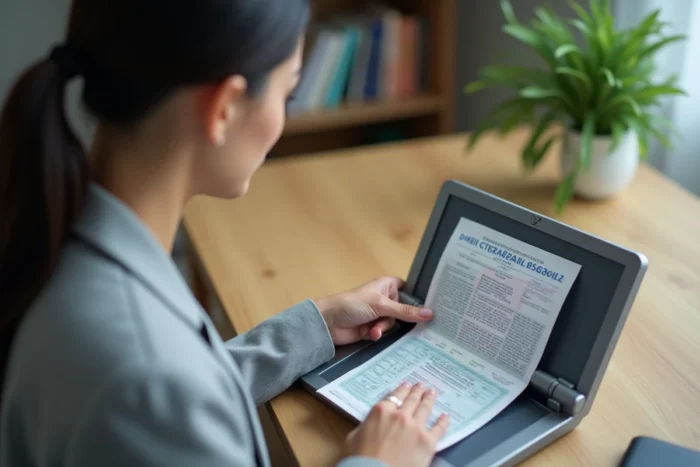
Scanning your passport may seem trivial, but a poorly framed or incomplete copy can block an administrative process, delay a booking, or be rejected by an automated verification system. The page to scan as a priority is the biographical identity page, which contains the photo, civil status, and the MRZ zone. However, the requirements vary depending on the context: naturalization procedure, opening a bank account, or travel formalities.
MRZ Zone of the Passport: The Data That Automated Checks Read First
Most guides focus on the identity photo visible on the inner double page. This approach is incomplete. What determines the acceptance or rejection of a scan by an automated system is the readability of the two MRZ lines located at the bottom of the identity page.
The MRZ zone (Machine Readable Zone) groups essential information of the holder in a standardized format: name, date of birth, passport number, nationality, and expiration date. When you upload a scan to an online platform, an optical character recognition (OCR) algorithm extracts this data to compare it with the information entered in the form.
A scan where the MRZ zone is cut off, blurry, or partially obscured by a shadow triggers an automatic rejection, even if the photo is perfectly clear. Knowing which page to scan for your passport thus means identifying this biographical page and ensuring that the MRZ is fully captured.
To check the quality of the scan, open the file and zoom in on the two lines of characters at the bottom of the page. Each chevron and letter must be distinct. If two characters blend together on the screen, the file will likely be unreadable for an OCR.
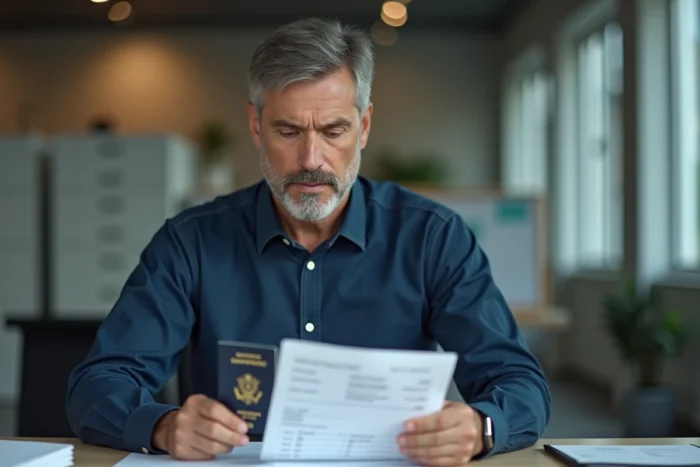
Passport Scan: Framing Errors That Cause Rejection
The principle to remember is simple: no retouching, no aggressive cropping, four corners visible. This framework is stricter than just a simple advice to “make a good scan”.
Here are the most common causes of rejection when uploading a passport scan:
- The four corners of the page are not visible in the image, preventing the system from confirming that it is a complete document and not a cropped montage.
- An automatic filter (black and white, high contrast, “document” mode of certain applications) alters the colors of the passport and makes the identity photo unusable for facial comparison.
- A shadow, often caused by the finger holding the passport open or by side lighting, covers part of the MRZ zone or the photo.
- The file exceeds the maximum weight accepted by the platform, or conversely, the resolution is too low to allow reading of fine characters.
The passport should be laid flat on a uniform and contrasting surface. A white background on a burgundy French passport works well. Avoid holding the page open with your fingers: a heavy object placed on each side (a book, a phone) frees up the capture area.
File Format and Weight: The Thresholds to Respect
The majority of administrative platforms accept PDF, JPEG, and PNG formats. The JPEG format offers a good compromise between visual quality and file weight. The PDF is better suited when multiple pages need to be grouped into a single document.
Regarding weight, the limits vary by site. ANTS generally imposes a limit per attachment. If your file exceeds this limit, reduce the resolution rather than compressing the image with a third-party tool, as compression degrades the fine details of the MRZ.
All Pages of the Passport or Only the Identity Page: What to Scan Depending on the Process
ANTS, in its document upload process, requests a readable scan of the document without always explicitly stating whether to scan all pages. The answer depends on the procedure being undertaken.
Common Procedures: The Biographical Page is Sufficient
For a flight reservation, car rental, account opening, or standard identity verification, only the double page containing the photo, civil status, and MRZ is required. Scanning blank pages adds nothing and increases the file size.
Naturalization and Consular Procedures: All Pages
Requests for naturalization by decree concern the entire passport, including blank pages. Entry and exit stamps, visas, and even the absence of marks on certain pages are part of the file.
Visa Applications
Some countries require the identity page plus the pages containing previous visas or recent stamps. Instructions vary by consulate. Check the list of required documents on the official website of the destination country before scanning.
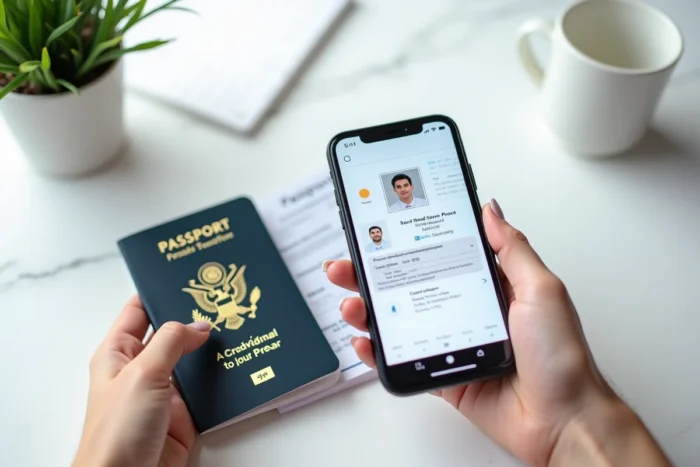
Secure Storage of the Passport Scan: What Happens After Scanning
The issue of security does not stop at the moment of scanning. A file containing your photo, passport number, and date of birth is a target for identity theft. The storage of the file is as sensitive as the scanning itself.
Keeping a passport scan in the photo gallery of your phone, automatically synced to an unencrypted cloud, exposes the document to anyone accessing the account. Recent recommendations converge towards a few concrete practices.
- Store the file in an end-to-end encrypted space, whether it’s a digital vault app or a password-protected folder on the device.
- Delete the scan from the photo gallery and the trash after moving it to the secure space.
- Never send a passport scan via unencrypted messaging (SMS, regular email). If sending is required, prefer a temporary download link or an encrypted transfer service.
Some sources recommend obscuring the passport number on copies intended for unofficial uses (hotel booking, for example). This precaution makes sense when the recipient does not need this data to process your request. However, for any official administrative procedure, the scan must remain complete and unaltered.
Old copies also deserve attention. A scan of an expired passport kept on a hard drive remains usable for an attempted fraud. Destroying files related to expired documents limits this risk. Also, remember to check download folders and email attachments, where forgotten copies may linger for years.